Showing posts with label DAZ. Show all posts

Tuesday, February 21, 2012

Wonderful Eye Material in Vue for DAZ Characters

This is yet another small tutorial I made for fixing materials in Vue from characters that come from DAZ.

Previously I've talked about how to fix the skin and hair materials. Now, with a bit of testing, I've come up with a good looking material that's easy to make and will give you great results. No need to purchase the eye editors for DAZ.

Some things to know:
The material I made is meant to reflect the actual scene, so it looks more natural.
Apply the material just to the CORNEA


Let's start:

You can start by selecting the Cornea material and loading the "Flat White", just completely ignore the material that came from DAZ.

On the Material Editor main tab, on the top left of the screen:

  • Make it [One sided] 
  • Click also on [Don't cast shadows]
  • Turn on [Disable caustics]
On the Highlights tab:
  • Make the [Highlight Color] something like RGB 185,192,216
  • Set [Highlight global Intensity] to 100%
  • Set [Highlight global size] to 80%
  • Set [Anisotropic highlighting] to 0%
On the Transparency tab:
  • Set [Global Transparency] to 80%
  • No [Blurred transparency]
  • [Refraction index] 1.0
  • [Flare intensity] 40%, span 10%

On reflections tab:

  • [Global Reflectivity] 30%
Now Rename your material and just save it! Use it again any time you bring a new character to Vue, just as simple as that!

Remember this is just how I made it, you can change it to suit your needs. This is the result I got:


**The scene was rendered with Global Radiosity.

Tuesday, February 14, 2012

Fixing HAMPTON hair in Vue imported from DAZ

There are a few fixes for hair and other materials that need to be made in order to have Vue render them correctly. In another post I made, I spoke of how to fix the skin texture, but in this case we'll just focus on the hair.

First we have to fix the materials for both the skin and the hair.
For the skin, check my post Fixing Skin in Vue imported from DAZ

**Remember that some of DAZ's hairs are different from others, The hair used here was the Hampton. You might need to change the Highlight and bump settings depending on your scene or the Hair Object that you use.

Fixing the Materials for the Hair
  • Lower the bump to 0.01
  • In [Highlights] tab: Put [Highlight global intensity] and [Highlight global size] to 100%
  • Make sure you have [Variable Highlight] checked.
  • Right click on  [Highlight production] and go to Edit Function. Link Highlight to your Texture map and set it to gray-scale.
Once the material is fixed, there are still some issues that need to be checked on render quality, for example rendering with the presets sometimes brings unexpected results (like transparencies showing weird shadows)

Fixing the Render Settings

How I set up my Render settings in [User Settings] is:
  • Advanced effects quality: 50%
In the [Anti-Aliasing] have both Object and texture checked and then click on the Edit button
  • I find that [object anti-aliasing] for the hair works best in [Systematic]
  • [Subrays per Pixel] Min 6, Max 16
  • [Quality Threshold] Contrast 50% and Geometry 0%
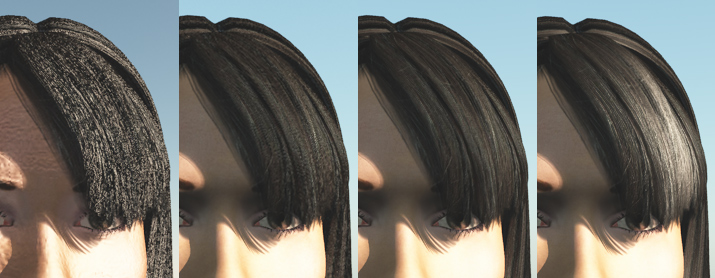
Render testings

How the quality of the image changes with the use of materials changes and render settings.
  1. The first Image is how it rendered [Final] just after import.
  2. Second is after all materials have fixed the bump.
  3. Third image is after fixing the render settings in [User Settings].
  4. Fourth is after adding the correct highlights to my hair.
This should already give you pretty good results, but there is still one more thing. 

For realism its best to use [Global Radiosity] in your [Atmosphere Editor] [Light ] Of course its not necesary and it depends on what your scene needs, but here are some before and afters:

Your Atmosphere will change drastically how your model looks.

Monday, February 13, 2012

Making and Saving Facial Expressions on DAZ


So, its always nice to buy something that is already made and gives you ease of use for your characters. But how about creating your OWN set of, for example, facial expressions! It's very easy! just a few simple steps:

1.- Setting up for creating and saving:
First just load any character that you want to make the facial expressions on (These expressions will work for any character tough, i simply chose the character that i'd like to see on the load icon for the expression)

Go to the [Posing / Shaping] tab. On the panel to the right, go to Parameters and then Pose controls.
For easy saving click on the two small arrows that will open the content library.

This is how my screen looks like
Having the tabs to the left will let you access the small [+] symbol for easy saving your pose
Set your character close to the screen so that when you save your pose you will have a good preview icon.

2.- Changing the Pose controls

Change and make the face as you want it. Adjust the sliders to create the facial expression of your choice

3.- Saving your Facial Expression

Once you are happy with how your face look, its easy to save for later use.

Go to the folder where you want to store your expressions (in my case Daz/Genesis/Poses/Faces)
Click on the [+] sign at the bottom left of the content library and click on [DSF Pose File ...]
Chose the save location (DAZ\People\Genesis\Poses\Faces)
choose a name, hit [Save] 

Then a DSF Pose Save Options screen appears. click on the Genesis (to deselect all) and then only select as shown here:

Saving your Facial Expression
By only choosing the pose controls and just the head you are assuring that your other characters wont turn into this one and still make the facial expression you wanted.

When you are done, an icon with your new facial expression will show on your library, double click on it to change your characters face.

I suggest you also save a "Neutral" face so you can reset the face at any time, for whatever reason.

And that's it! Happy facial expression making!!

Friday, November 4, 2011

Fixing skin in Vue imported from Daz

One of the first things I noticed when exporting my character from Daz to Vue, was that the skin looked really bad! my characters looked like made of plastic.  

I looked at this tutorial "OPTIMIZING POSER & OTHER ITEMS FOR VUE"  and found great information with useful tips! 

On this post I just highlight quickly what i need to remember to set up next time I import. If you want to read more detailed all the useful things they have over there, I really recommend it. But for now ill put here the quick list for what I have done. I have tweaked to what works for me so feel free to do what you think works best for your models and your scenes.


On Material Editor for EACH skin material :
  1. Highlight color to WHITE
  2. check Variable Highlights - Edit Function - Link Highlight to map (grayscale)
  3. set Global Intensity and Global Size to 10%
  4. Bump - Edit Function - Link Bump to texture map (grayscale) - Depth to 0.01

For the lips (after applying the previous changes:
  1.  Change the Overall Color to the tone you want (in a very light tone)
  2. set Global Intensity to 80% and Global Size to 50%
For the face and neck I use Global Intensity at 35% Looks nicer I think.

Don't mind the quality, left is on ultra and right is on broadcast.


RENDER QUALITY

One more thing I'll add here is the comparison of the quality of the renders, so you can choose  what works best. The renders were the same size (the full image not the strips I show) and the time in the image is how long it took to render, so you can compare quality versus time. Those images were rendered before Skin adjustments. Actually no material adjustments at all.


*I* personally dont think the quality difference between broadcast and Ultra is that huge (at least for my hobby purposes) and I dont think its worth 3 times the time. but every once in a while its nice rendering the full quality. You choose.

Anyways, have fun!