I'll keep this simple. Each test I made had only one variable changing. Each test shows what was changed, you will be the judge of what works best for you. Sometimes the difference is quite small, sometimes quite big. Check it out below.
Test one, Filter Radius:
Tests included Filter Radius: 0.1, 0.2, 0.5, 0.9
Images were rendered at:
Size: 1024x768 Quality: 1000 Oversample: 2
 |
| Comparison between different filter radius settings. |
Findings:
- The higher the filter radius value, the softer the edges of the lines will be. (0.9 being best)
- Difference in time is minimal at the size tested (5 second difference between highest and lowest value)
- Difference in -+0.1 is minimal. Make larger increases/decreases to notice a difference.
FILTER TESTS STATS
--- Rendering "Fae2-1-1000.jpg"" ---
Size: 1024x768
Quality: 1000
Oversample: 2, Filter: 0.1
Total time: 8 minute(s) 7.27 second(s)
--- Rendering "Fae2-2-1000.jpg"" ---
Size: 1024x768
Quality: 1000
Oversample: 2, Filter: 0.2
Total time: 8 minute(s) 10.52 second(s)
--- Rendering "Fae2-5-1000.jpg"" ---
Size: 1024x768
Quality: 1000
Oversample: 2, Filter: 0.5
Total time: 8 minute(s) 8.99 second(s)
--- Rendering "Fae2-9-1000.jpg"" ---
Size: 1024x768
Quality: 1000
Oversample: 2, Filter: 0.9
Total time: 8 minute(s) 12.63 second(s)
-------------------------------------------------------------------------------------------
Test two, Oversample:
Tests included Oversample: 1, 2, 3, 4
Images were rendered at:
Size: 1024x768 Quality: 1000 Filter: 0.5
Findings:
Test three, Quality Density:
Images were rendered at:
Size: 1024x768 Quality: 1000 Filter: 0.5
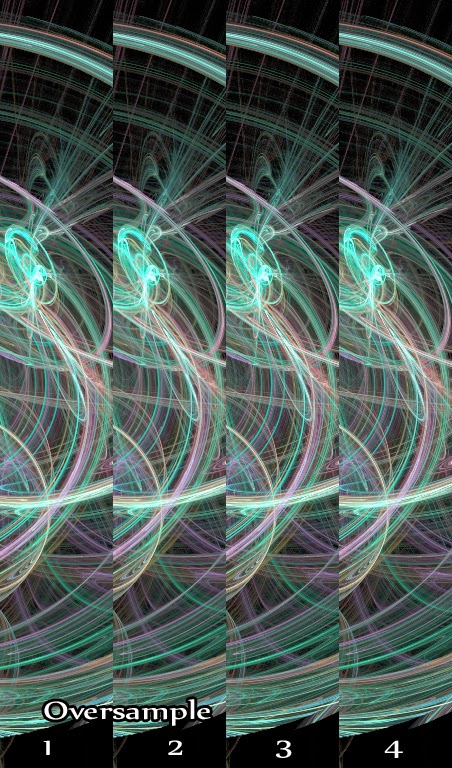 |
| Comparison of oversample settings |
Findings:
- The more oversample you have, the faster it renders (16 second faster between oversample 4 and 1)
- *I* couldn't find much difference in image quality (at least under these test settings)
- Needs to be tested in conjunction with another variable
OVERSAMPLE TESTS STATS
--- Rendering "Fae1-5-1000.jpg"" ---
Size: 1024x768
Quality: 1000
Oversample: 1, Filter: 0.5
Total time: 8 minute(s) 21.58 second(s)
--- Rendering "Fae2-5-1000.jpg"" ---
Size: 1024x768
Quality: 1000
Oversample: 2, Filter: 0.5
Total time: 8 minute(s) 8.99 second(s)
--- Rendering "Fae3-5-1000.jpg"" ---
Size: 1024x768
Quality: 1000
Oversample: 3, Filter: 0.5
Total time: 8 minute(s) 8.92 second(s)
--- Rendering "Fae4-5-1000.jpg"" ---
Size: 1024x768
Quality: 1000
Oversample: 4, Filter: 0.5
Total time: 8 minute(s) 5.18 second(s)
-------------------------------------------------------------------------------------------
Test three, Quality Density:
Tests included Quality Density: 200, 500, 1000, 2000, 4000
Images were rendered at:
Size: 1024x768 Oversample: 2 Filter: 0.5
Findings:
Images were rendered at:
Size: 1024x768 Oversample: 2 Filter: 0.5
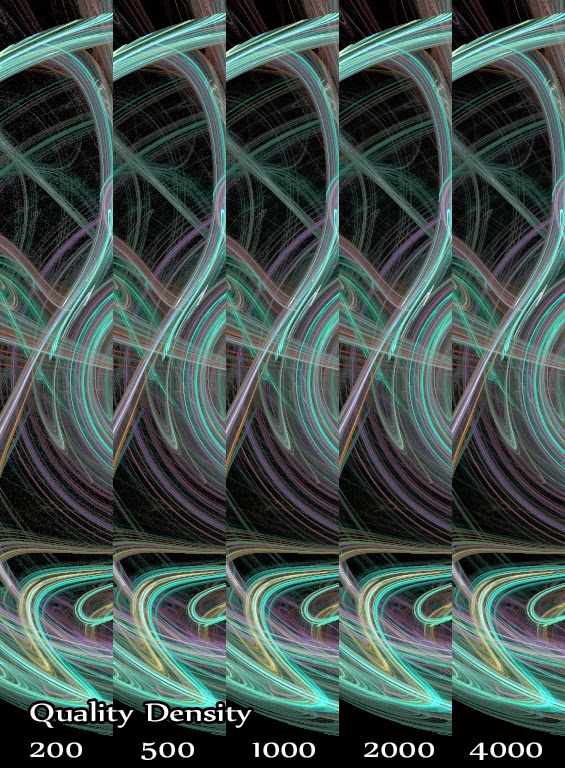 |
| Comparisons between quality density values |
Findings:
- Difference in quality density drastically affects time
- It is most noticeable in dark areas with light flame strokes
- Difference between 2000 and 4000 (under these settings) is not that much, might be worth going 2000 to save time.
QUALITY DENSITY TESTS STATS
--- Rendering "Fae2-5-200.jpg"" ---
Size: 1024x768
Quality: 200
Oversample: 2, Filter: 0.5
Total time: 1 minute(s) 39.83 second(s)
--- Rendering "Fae2-5-500.jpg"" ---
Size: 1024x768
Quality: 500
Oversample: 2, Filter: 0.5
Total time: 4 minute(s) 4.83 second(s)
--- Rendering "Fae2-5-1000.jpg"" ---
Size: 1024x768
Quality: 1000
Oversample: 2, Filter: 0.5
Total time: 8 minute(s) 8.99 second(s)
--- Rendering "Fae2-5-2000.jpg"" ---
Size: 1024x768
Quality: 2000
Oversample: 2, Filter: 0.5
Total time: 16 minute(s) 17.46 second(s)
--- Rendering "Fae2-5-4000.jpg"" ---
Size: 1024x768
Quality: 4000
Oversample: 2, Filter: 0.5
Total time: 32 minute(s) 30.84 second(s)


